
List your rentals on Google Vacation Rentals
Send the rentals on your iGMS direct booking website to Google Vacation Rentals, where travelers find them in Google Search and Maps. The help centre says there is no additional fee. Each listing needs a full address, 8 photos and a few more details. You need an iGMS direct booking website and, per listing, a full address, 8 photos and the maximum guest count.
GoogleDirectIntermediateAbout 30 minutes for the first listing
On this page
At a glance
| Time | About 30 minutes for the first listing (estimate) |
|---|---|
| Difficulty | Intermediate |
| Plan | PRO or PRO+ (needs an iGMS website) (compare plans) |
| Feature | Direct booking toolset |
| Works with | Google, Direct |
| Steps | 6 |
| Last checked | 19 November 2026, against the iGMS help centre |
What do you need before you start?
- An iGMS direct booking website (see «Build a direct booking website»). It is mandatory.
- For each listing: full address and map pin, phone number, description, 8 photos and the maximum guest count.
- A logo for your website.
How do you list your rentals on Google Vacation Rentals?
Step 1 Build your direct booking website
Skip this step if you already have an iGMS website.
Where
Websites → Create Your WebsiteRecipe: Build a direct booking website
Step 2 Publish properties on the website
Go to Websites, choose the site, open Published Properties and tick each property. Only properties on your website go to Google.
Where
Websites → site → Published PropertiesStep 3 Check the address
Open Accounts & Listings, click the property and open the Address tab. Enter the full address and drag the pin to the right spot.
Where
Accounts & Listings → property → AddressStep 4 Complete the listing details
In the Direct Booking Listing Editor, add the phone number, a description of at least 50 characters, 8 photos and the maximum number of guests, then click Save.
Where
Direct Booking Listing Editor → SaveStep 5 Upload your logo
In Website Builder → Settings → Your Brand, upload your logo.
Where
Website Builder → Settings → Your BrandStep 6 Turn on Google Vacation Rentals
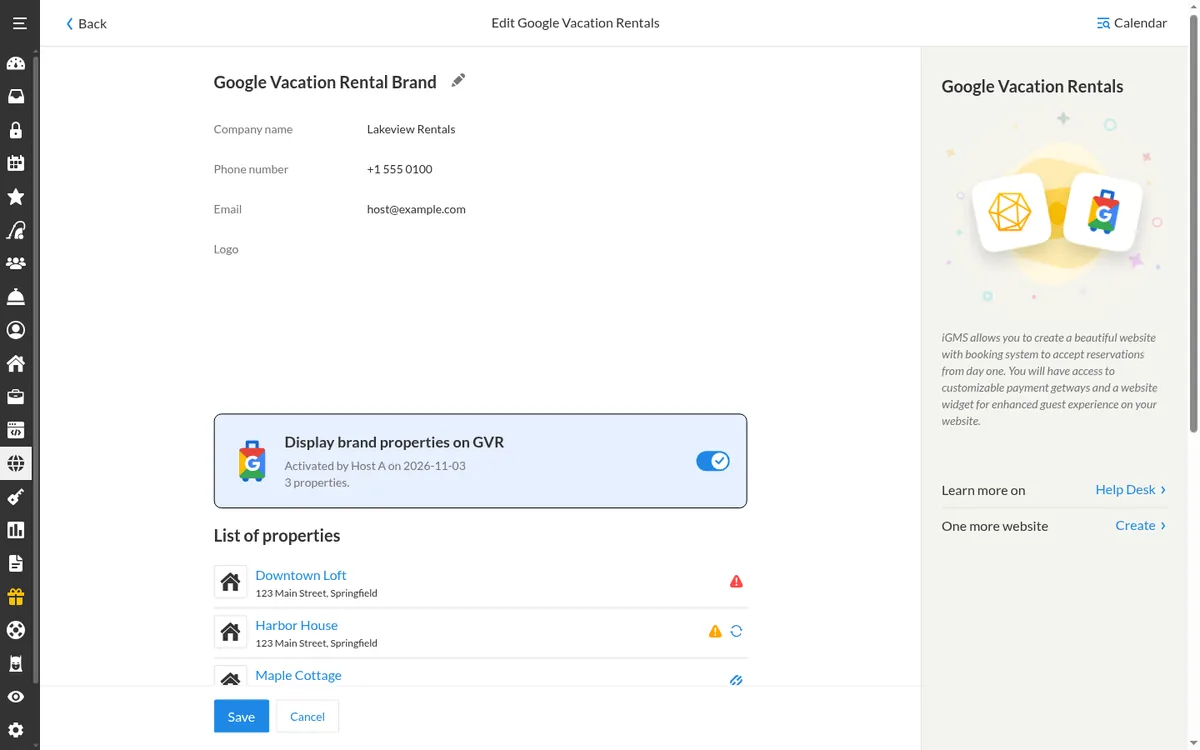
In Websites, click Open next to Vacation Rentals and switch on «Display brand properties on GVR». Listings that still miss a requirement show a red exclamation mark.
Where
Websites → Vacation Rentals → Open → Display brand properties on GVR
Try it in iGMS with your own listings for 14 days.No credit card required.
Start freeWhat should you see when it works?
The Vacation Rentals panel shows the toggle on, and listings without a red mark are sent to Google.
What if it does not work?
- A red exclamation mark means the listing misses an address, phone number, description, photos, guest count or the website logo.
- A property is missing on Google? Check it is published on your direct booking website.
Frequently asked questions
Does Google charge to list my rental?
The iGMS help centre says listing on Google Vacation Rentals costs no additional fee.
Do I need a website first?
Yes. An iGMS direct booking website is required.
Which properties go to Google?
Only those published on your direct booking website that meet Google's requirements.
Use this recipe with your AI agent
Copy the prompt into ChatGPT, Claude or another assistant. It loads the recipe's Agent Skill and walks you through the steps while you click.
I manage vacation rentals in iGMS. Load the skill at https://www.igms.com/go/cookbook/list-on-google-vacation-rentals/SKILL.md (or read https://www.igms.com/go/cookbook/list-on-google-vacation-rentals.md) and walk me through «List your rentals on Google Vacation Rentals» one step at a time. Ask me what I see on screen before each step, and stop if my screen differs from the recipe.
Related recipes
- Build · BeginnerBuild a direct booking website
- Sync · IntermediateSync Airbnb and Vrbo calendars in one place
- Connect · BeginnerConnect PriceLabs to iGMS for dynamic pricing
Sources
Each step was written from the iGMS help centre on 19 November 2026. The help articles behind the steps are listed here.
| Step | Claim | Source | Status |
|---|---|---|---|
| Step 1 | Build your direct booking website | help | In the help article |
| Step 2 | Publish properties on the website | help | In the help article |
| Step 3 | Check the address | help | In the help article |
| Step 4 | Complete the listing details | help app check | In the help article |
| Step 5 | Upload your logo | help | In the help article |
| Step 6 | Turn on Google Vacation Rentals | help | In the help article |