
Create message templates with guest details filled in
Write a reply once and let iGMS fill in each guest's name, dates and listing details with template elements such as Guest's First Name. A template has 4 parts: a name, who it is for, the message and its automation settings. You need your properties connected to iGMS.
AirbnbVrboBooking.comDirectBeginnerAbout 5 minutes per template
On this page
At a glance
| Time | About 5 minutes per template (estimate) |
|---|---|
| Difficulty | Beginner |
| Plan | Every plan: FLEX, PRO and PRO+ (compare plans) |
| Feature | Airbnb automation |
| Works with | Airbnb, Vrbo, Booking.com, Direct |
| Steps | 5 |
| Last checked | 19 November 2026, against the iGMS help centre |
What do you need before you start?
- Your properties connected to iGMS.
- A signature in your iGMS profile if you want to use the signature variable.
How do you create message templates with guest details filled in?
Step 1 Open the Template Editor
In the Inbox, open a conversation and click New Template in the template block. Or go to Properties, open a property and, on the General tab, click Customize Message Templates, then New Template.
Where
Inbox → conversation → New Template · Property Editor → General → Customize Message Templates → New TemplateStep 2 Name it and choose who gets it
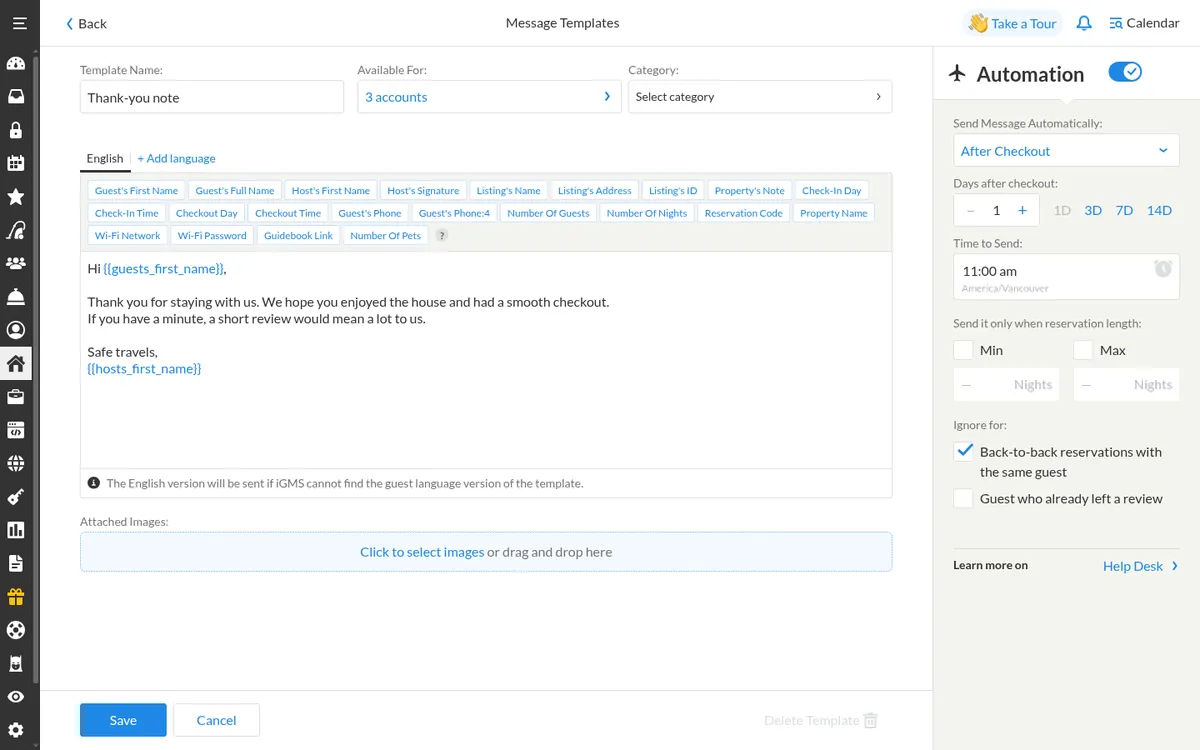
Give the template a name such as «Check-in instructions». In Available For, choose all guests (a blue template) or guests of specific properties (a purple template).
Where
Template Editor → Template Name · Available ForStep 3 Write the message with template elements
Type the message and click the element buttons above the message box to insert stay details, such as Guest's First Name, Check-In Time, Listing's Name or Wi-Fi Password. iGMS fills each one in from the reservation when the message goes out.
Where
Template Editor → element buttons (Guest's First Name, Check-In Time…)Step 4 Add a category (optional)
Open Category on the template's page and create or pick categories, so you can filter templates in the Inbox.
Where
Template Editor → CategoryStep 5 Save and send it
Click Save. To send it by hand, open the guest's conversation, click the template title, edit the text if needed and click Send. To send it automatically, add a trigger.
Where
Inbox → conversation → template → Send
Try it in iGMS with your own listings for 14 days.No credit card required.
Start freeWhat should you see when it works?
The template appears in the Inbox template list and in the property's Message Templates, and a sent message shows the guest's real details.
What if it does not work?
- Host's Signature comes from your iGMS profile. Write the signature there first.
- Sending a template by hand stops its automatic send for that guest.
- Guest's Phone:4 gives the last 4 digits of the guest's phone number; some hosts use it as a temporary smart-lock code.
Frequently asked questions
Which details can a template fill in?
The element buttons cover the guest's first and full name, host's first name and signature, listing name, address and ID, property name and note, check-in and checkout day and time, guest phone (or its last 4 digits), number of guests, nights and pets, reservation code, Wi-Fi network and password, and the guidebook link.
What is the difference between blue and purple templates?
Blue templates go to all guests. Purple templates go only to guests of the properties you choose.
Can I write templates in other languages?
Yes. The iGMS help centre has a separate article on templates in different languages.
Use this recipe with your AI agent
Copy the prompt into ChatGPT, Claude or another assistant. It loads the recipe's Agent Skill and walks you through the steps while you click.
I manage vacation rentals in iGMS. Load the skill at https://www.igms.com/go/cookbook/create-message-templates/SKILL.md (or read https://www.igms.com/go/cookbook/create-message-templates.md) and walk me through «Create message templates with guest details filled in» one step at a time. Ask me what I see on screen before each step, and stop if my screen differs from the recipe.
Related recipes
- Automate · BeginnerAutomate guest messages with triggers
- Set up · IntermediateSet up the AI Agent to answer guests overnight
Sources
Each step was written from the iGMS help centre on 19 November 2026. The help articles behind the steps are listed here.
| Step | Claim | Source | Status |
|---|---|---|---|
| Step 1 | Open the Template Editor | help app check | In the help article |
| Step 2 | Name it and choose who gets it | help | In the help article |
| Step 3 | Write the message with template elements | help app check | In the help article |
| Step 4 | Add a category (optional) | help | In the help article |
| Step 5 | Save and send it | help | In the help article |