
Set up the AI Agent to answer guests overnight
Let the iGMS AI Agent answer routine guest questions on a schedule you choose, such as night shifts only. It writes from your listings, templates and AI Knowledge Base. The agent is part of the PRO+ plan; setup takes 6 steps. You need the PRO+ plan, the Account Owner or Administrator role, and your property facts as text.
AirbnbVrboBooking.comDirectIntermediateAbout 20 minutes, plus time to write the knowledge base
On this page
At a glance
| Time | About 20 minutes, plus time to write the knowledge base (estimate) |
|---|---|
| Difficulty | Intermediate |
| Plan | PRO+ (compare plans) |
| Feature | Airbnb automation |
| Works with | Airbnb, Vrbo, Booking.com, Direct |
| Steps | 6 |
| Last checked | 19 November 2026, against the iGMS help centre |
What do you need before you start?
- The PRO+ plan.
- The Account Owner or Administrator role.
- Your property facts written as text: the AI Knowledge Base can't read links, videos or PDFs.
How do you set up the AI Agent to answer guests overnight?
Step 1 Fill the AI Knowledge Base
In the Property Editor, click Update AI Knowledge. Edit each category with the pen icon, for example house rules, amenities, local recommendations or transportation, and save.
Where
Property Editor → Update AI KnowledgeStep 2 Test the answers
Click Explore AI Replies in the Property Editor and ask the questions guests send you. If an answer is wrong or thin, click Add New Information under it and add the correct facts.
Where
Property Editor → Explore AI RepliesStep 3 Open the AI Agent settings
Go to Profile, then Business settings, then AI Automation. On the AI Agent card, click Customize.
Where
Profile → Business settings → AI Automation → AI Agent → CustomizeStep 4 Pick a schedule
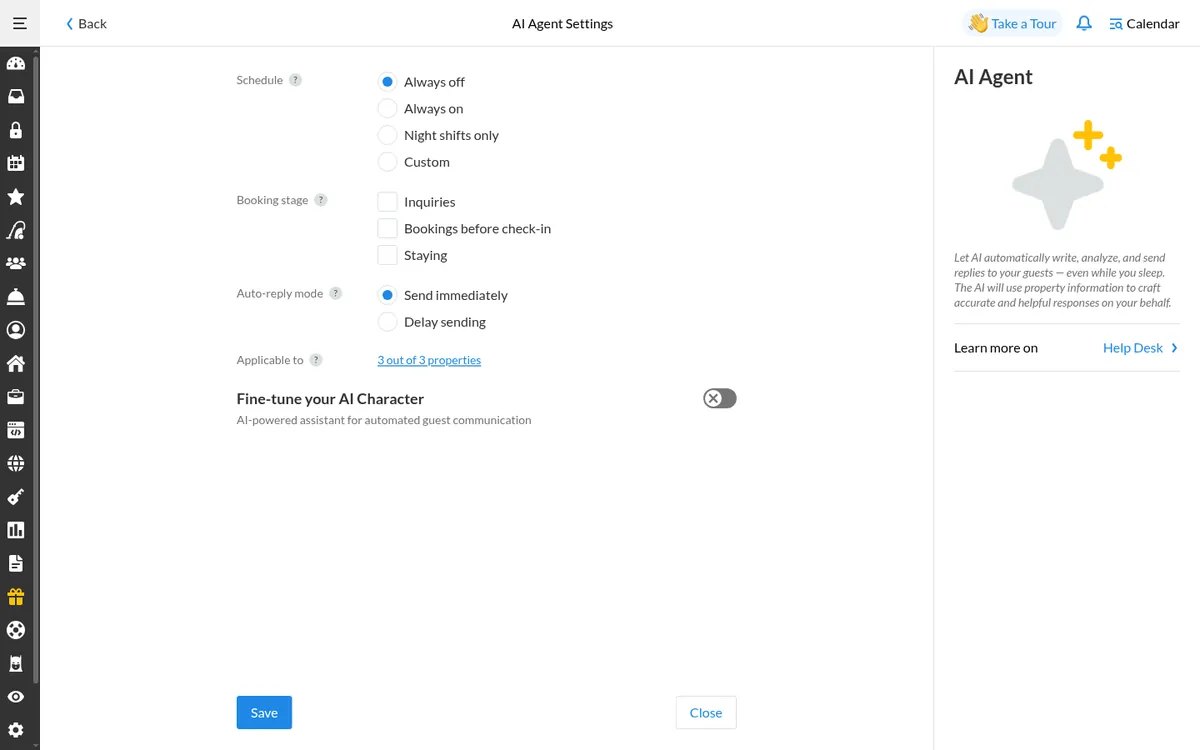
Choose Always on, Always off, Night shifts, or a custom From–To window for the weekdays you pick. A shift can cross midnight. The schedule uses the account owner's time zone.
Where
AI Agent → ScheduleStep 5 Choose booking stages and reply mode
Pick the stages the agent may answer: Inquiries, Before check-in, Staying. Choose to send at once or after a short delay. During the delay the draft waits in the Inbox with a timer; if you reply yourself, the draft is cancelled.
Where
AI Agent → Booking stage · Auto-reply modeStep 6 Choose properties and tone, then save
Apply the agent to all properties or selected ones. If you want, set the tone and message length. Then choose what happens with unclear questions: «Buy more time» sends a holding reply, and «Do not respond» leaves the conversation unread for you. Click Save.
Where
AI Agent → Applicable to · Tone · Message length · Unclear questions → Save
Try it in iGMS with your own listings for 14 days.No credit card required.
Start freeWhat should you see when it works?
The AI Agent card shows how many properties it covers and its current schedule, for example «Night shifts only».
What if it does not work?
- Agent not replying? Check the schedule, booking stage, reply mode and properties, and that the guest wrote during an active window.
- Replies seem off? Update the AI Knowledge Base (Update AI Knowledge button) and test again in Explore AI Replies.
- No AI Automation menu? Ask the account owner or an administrator.
- For a Request to Book, the agent answers the question but does not accept or decline the request.
Frequently asked questions
How is the AI Agent different from the Inbox AI Assistant?
The Inbox AI Assistant drafts a reply when you click Generate AI Answer, and you send it. The AI Agent sends replies by itself within your schedule, stages and properties. Both use the property's AI Knowledge Base.
Which plan includes the AI Agent?
PRO+.
Does it see changes to a booking?
Yes. It reads the reservation data when it sends each reply.
Should it answer refunds or complaints?
Set unclear questions to «Do not respond» for sensitive topics such as refunds, damages and complaints; the conversation stays unread for you.
Use this recipe with your AI agent
Copy the prompt into ChatGPT, Claude or another assistant. It loads the recipe's Agent Skill and walks you through the steps while you click.
I manage vacation rentals in iGMS. Load the skill at https://www.igms.com/go/cookbook/set-up-ai-agent-guest-replies/SKILL.md (or read https://www.igms.com/go/cookbook/set-up-ai-agent-guest-replies.md) and walk me through «Set up the AI Agent to answer guests overnight» one step at a time. Ask me what I see on screen before each step, and stop if my screen differs from the recipe.
Related recipes
- Create · BeginnerCreate message templates with guest details filled in
- Automate · BeginnerAutomate guest messages with triggers
- Invite · BeginnerInvite a team member with limited access
Sources
Each step was written from the iGMS help centre on 19 November 2026. The help articles behind the steps are listed here.
| Step | Claim | Source | Status |
|---|---|---|---|
| Step 1 | Fill the AI Knowledge Base | help app check | In the help article |
| Step 2 | Test the answers | help | In the help article |
| Step 3 | Open the AI Agent settings | help | In the help article |
| Step 4 | Pick a schedule | help | In the help article |
| Step 5 | Choose booking stages and reply mode | help | In the help article |
| Step 6 | Choose properties and tone, then save | help | In the help article |