
Invite a team member with limited access
Add a cleaner, co-host or manager to iGMS with one of 8 roles and access only to the properties they work on. They get an email invitation and set their own password. You need the Administrator, Manager or Head of Cleaners role and the person's name, email and phone.
AirbnbVrboBooking.comDirectBeginnerAbout 3 minutes per person
On this page
At a glance
| Time | About 3 minutes per person (estimate) |
|---|---|
| Difficulty | Beginner |
| Plan | Every plan: FLEX, PRO and PRO+ (compare plans) |
| Feature | Cleaning management |
| Works with | Airbnb, Vrbo, Booking.com, Direct |
| Steps | 6 |
| Last checked | 19 November 2026, against the iGMS help centre |
What do you need before you start?
- The Administrator, Manager or Head of Cleaners role. A Head of Cleaners can invite cleaners only.
- The person's full name, email and phone number.
How do you invite a team member with limited access?
Step 1 Click Add New Member
Open Team & Members and click Add New Member.
Where
Team & Members → Add New MemberStep 2 Fill in personal information
In the Personal tab, add the name, email address and phone number. Choose notifications by email, by text or both in the Notifications tab.
Where
New Member → Personal · NotificationsStep 3 Choose the role and permissions
In the Permissions tab, pick the Primary Role: Administrator, Manager, Accountant, Cleaner, Head of Cleaners, Guest Support, Not a member or Concierge. Some roles come with preset permissions, for example an Accountant always sees Reporting; switch the other permissions on or off.
Where
New Member → Permissions → Primary RoleStep 4 Limit property access
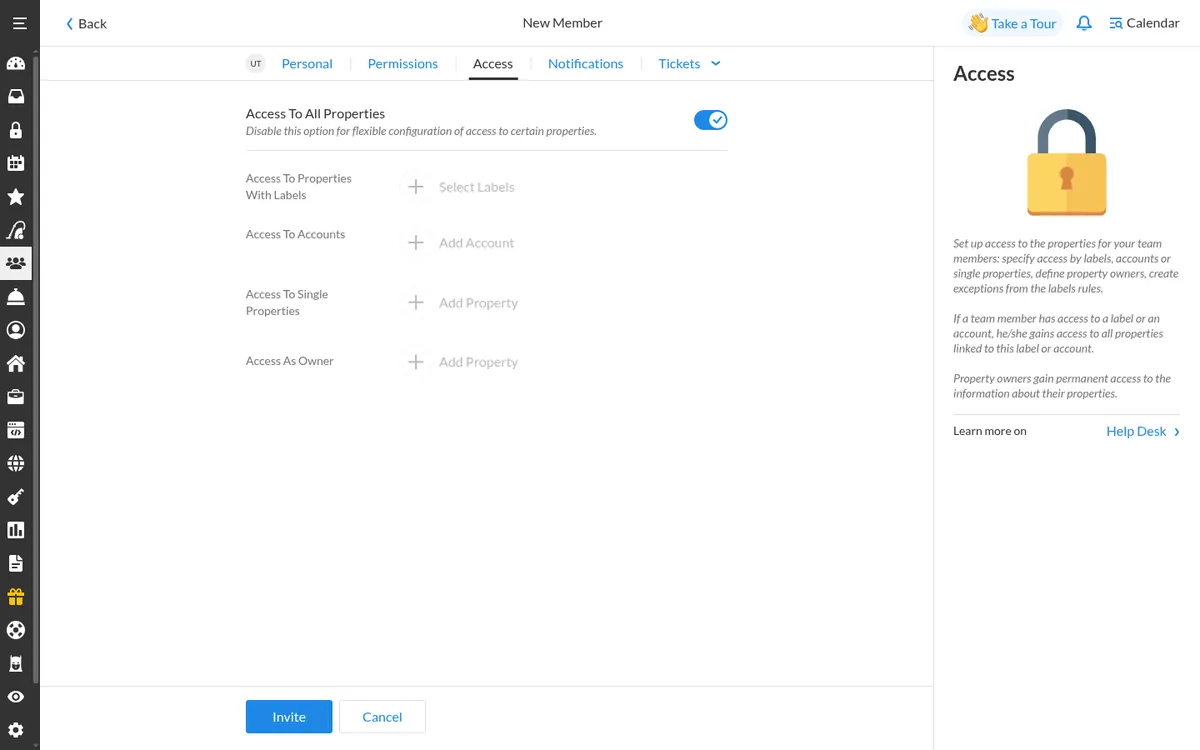
In the Access tab, keep Access To All Properties on, or choose labels (for example one city), whole accounts or single properties. Pick at least one, or the person sees no data.
Where
New Member → AccessStep 5 Send the invitation
Click Invite. iGMS emails the invitation; the person follows it and creates a password. Ask them to check spam if it doesn't arrive.
Where
New Member → InviteStep 6 Check the status
In Team & Members, Invited (green) means not accepted yet. Active (grey) means the person has logged in.
Where
Team & Members
Try it in iGMS with your own listings for 14 days.No credit card required.
Start freeWhat should you see when it works?
The new member shows in Team & Members as Invited, then Active after the first login.
What if it does not work?
- Invitation link expired? Delete the user and invite them again.
- Already in another iGMS team? They must leave that team before they can accept.
- An Administrator always sees every property. To limit someone, give them the Manager role and set access.
- Each property can have only one property owner.
Frequently asked questions
Who can invite team members?
Administrators, Managers and the Head of Cleaners. The Head of Cleaners can invite cleaners only.
Can a property owner see their own properties?
Yes. Invite them with Access as Owner; owners get only that access option.
What happens when I remove someone?
They can still log in to iGMS and start their own team.
Use this recipe with your AI agent
Copy the prompt into ChatGPT, Claude or another assistant. It loads the recipe's Agent Skill and walks you through the steps while you click.
I manage vacation rentals in iGMS. Load the skill at https://www.igms.com/go/cookbook/invite-team-member/SKILL.md (or read https://www.igms.com/go/cookbook/invite-team-member.md) and walk me through «Invite a team member with limited access» one step at a time. Ask me what I see on screen before each step, and stop if my screen differs from the recipe.
Related recipes
- Auto-assign · BeginnerAuto-assign cleaning tasks to your cleaners
- Set up · IntermediateSet up the AI Agent to answer guests overnight
- Connect · BeginnerConnect your Airbnb account to iGMS
Sources
Each step was written from the iGMS help centre on 19 November 2026. The help articles behind the steps are listed here.
| Step | Claim | Source | Status |
|---|---|---|---|
| Step 1 | Click Add New Member | help app check | In the help article |
| Step 2 | Fill in personal information | help app check | In the help article |
| Step 3 | Choose the role and permissions | help help app check | In the help article |
| Step 4 | Limit property access | help help | In the help article |
| Step 5 | Send the invitation | help app check | In the help article |
| Step 6 | Check the status | help | In the help article |